
Allow SVG uploads
Elementor doesn't allow SVG uploads by default, so the import skipped the SVG files in your design. The rest of the page was imported. An administrator can allow SVG uploads in Elementor, then you import again.
Allow SVG uploads in Elementor
You need to be an administrator of the WordPress site.
- In WordPress, go to Elementor → Editor, then select Settings.
- Open the Advanced tab.
- Set Enable Unfiltered File Uploads to Enable.
- Select Save Changes at the bottom of the page.
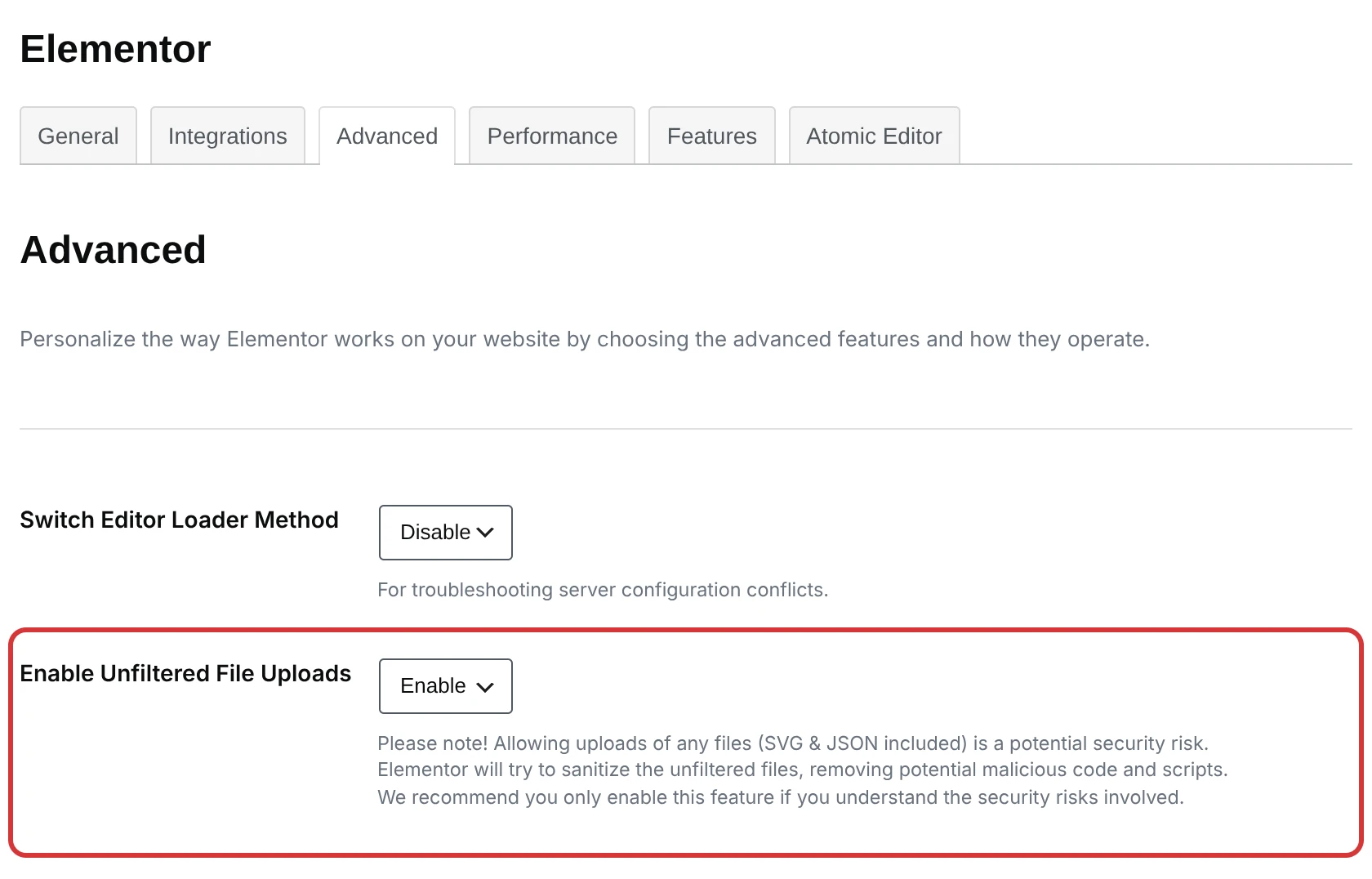
Elementor cleans each SVG file as it is uploaded, removing scripts and other code that could harm the site. Turn this on only if you trust the people who can upload files to your site.
Import again
Paste the same desktop frame link into Atomic Studio in WordPress and import again. Importing the same desktop frame again updates the page it created before, now with the SVG files included.
Learn more
- Enable SVG support in Elementor (opens in a new tab) — Elementor Help Center